Console Home
This document explains how to use the BotManager home interface.
Login
First, log in to STCLab Cloud.
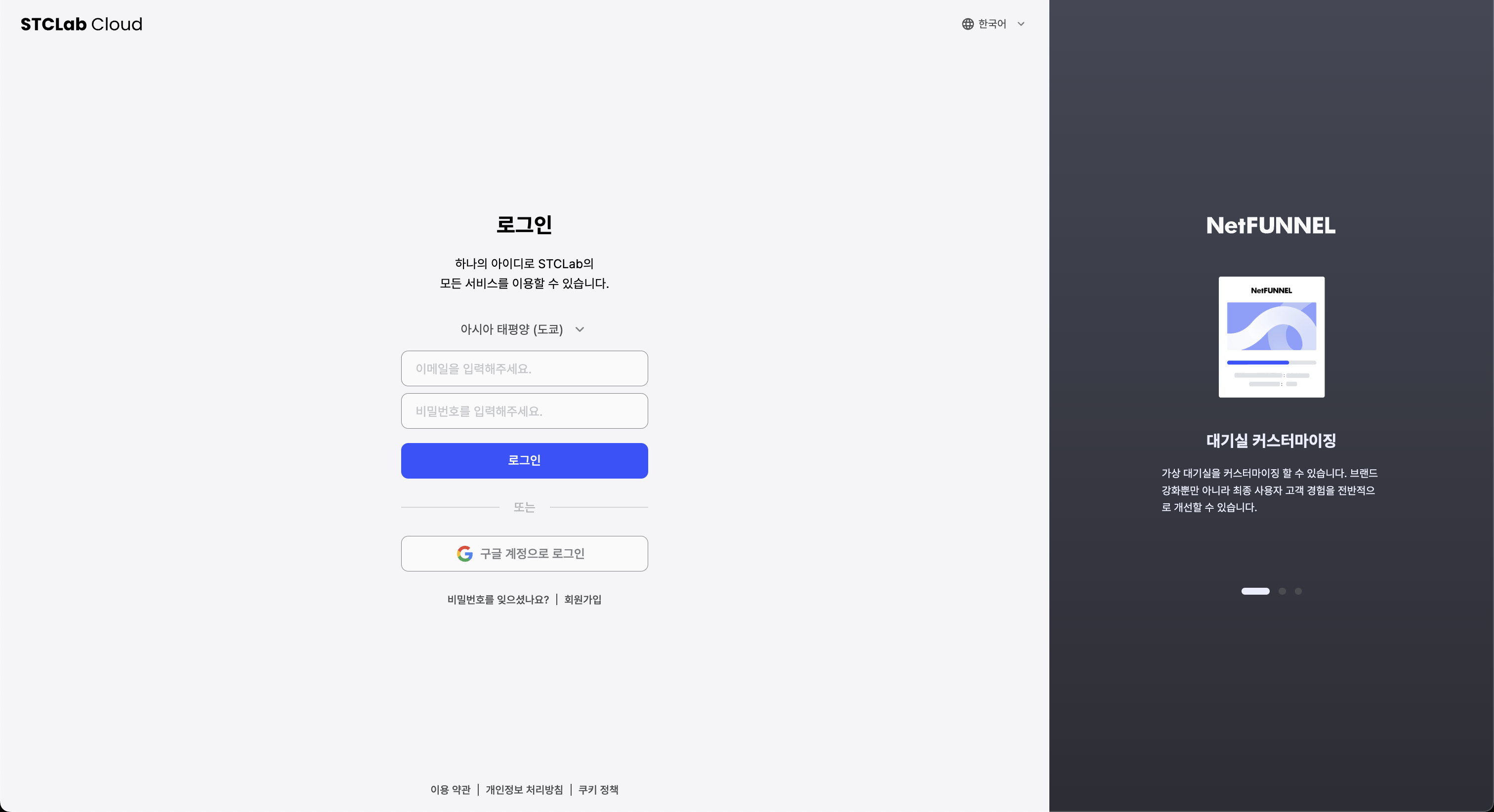
Click the BotManager shortcut button at the bottom of the dashboard screen.
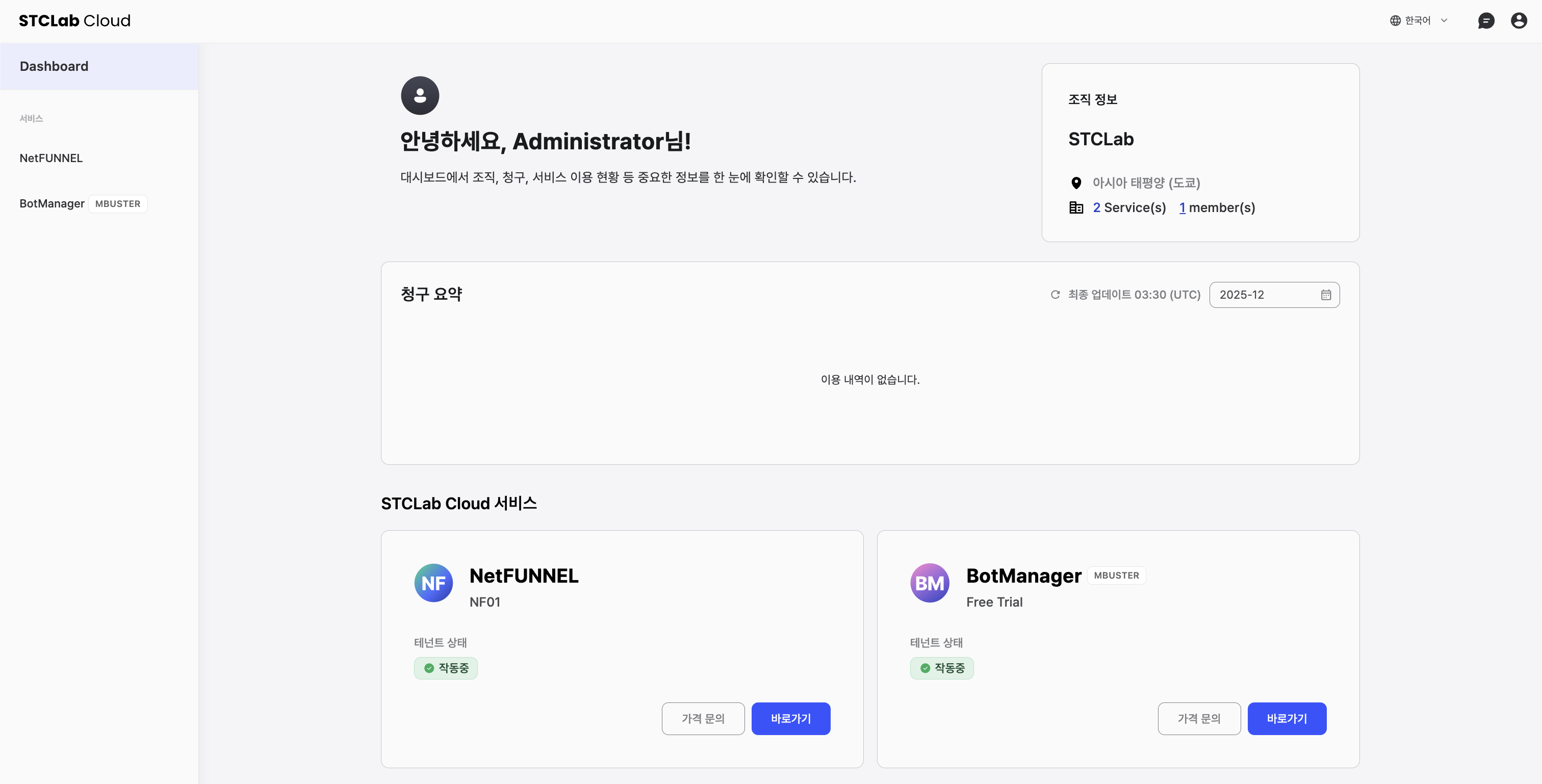
Click the BotManager launch button on the right side of the service home screen.
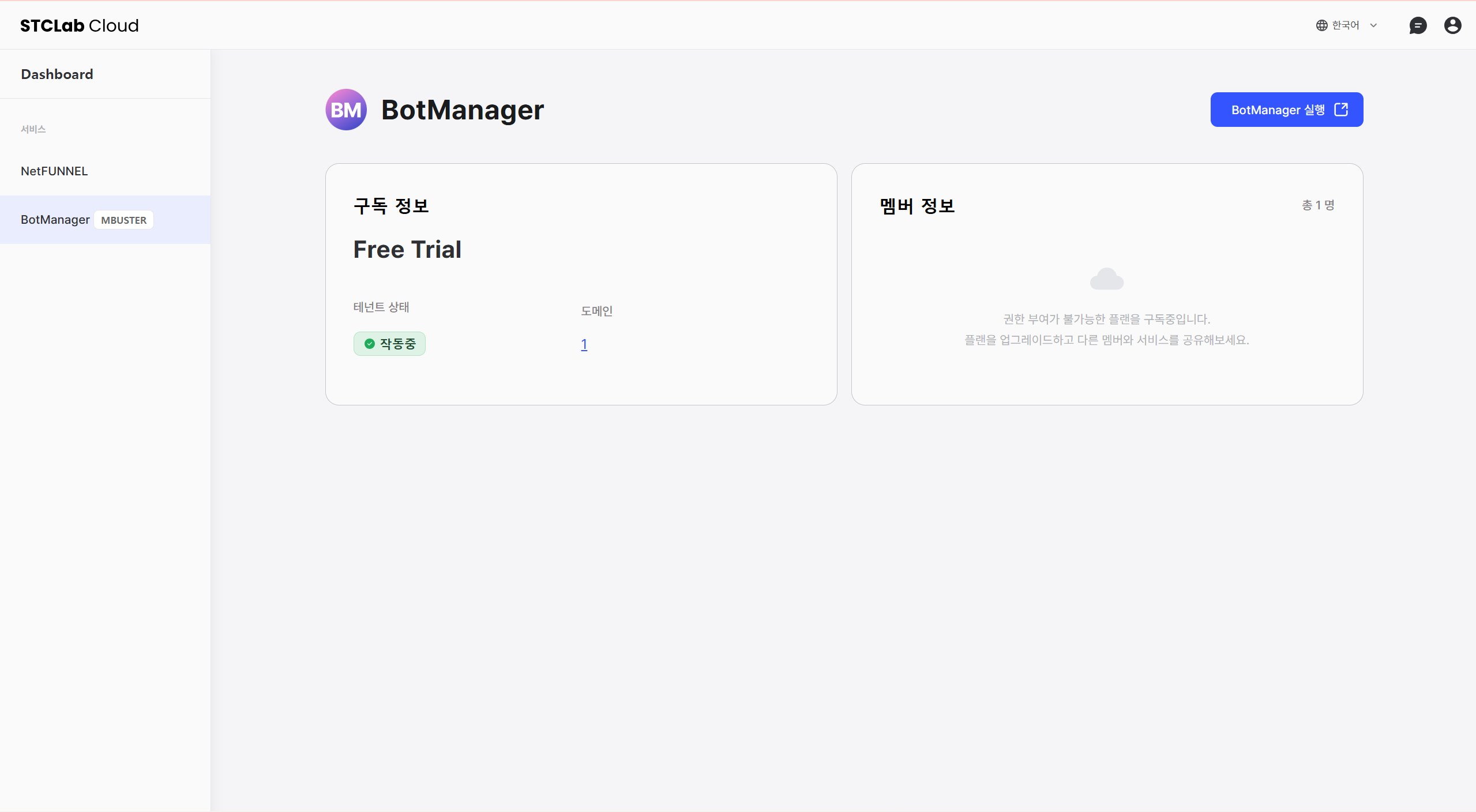
BotManager Home
In the console, you can check the BotManager plan, Environment Status, and domain application status.
If the environment status is displayed as "Stopped", the service cannot be used. You can only view existing settings or service data.
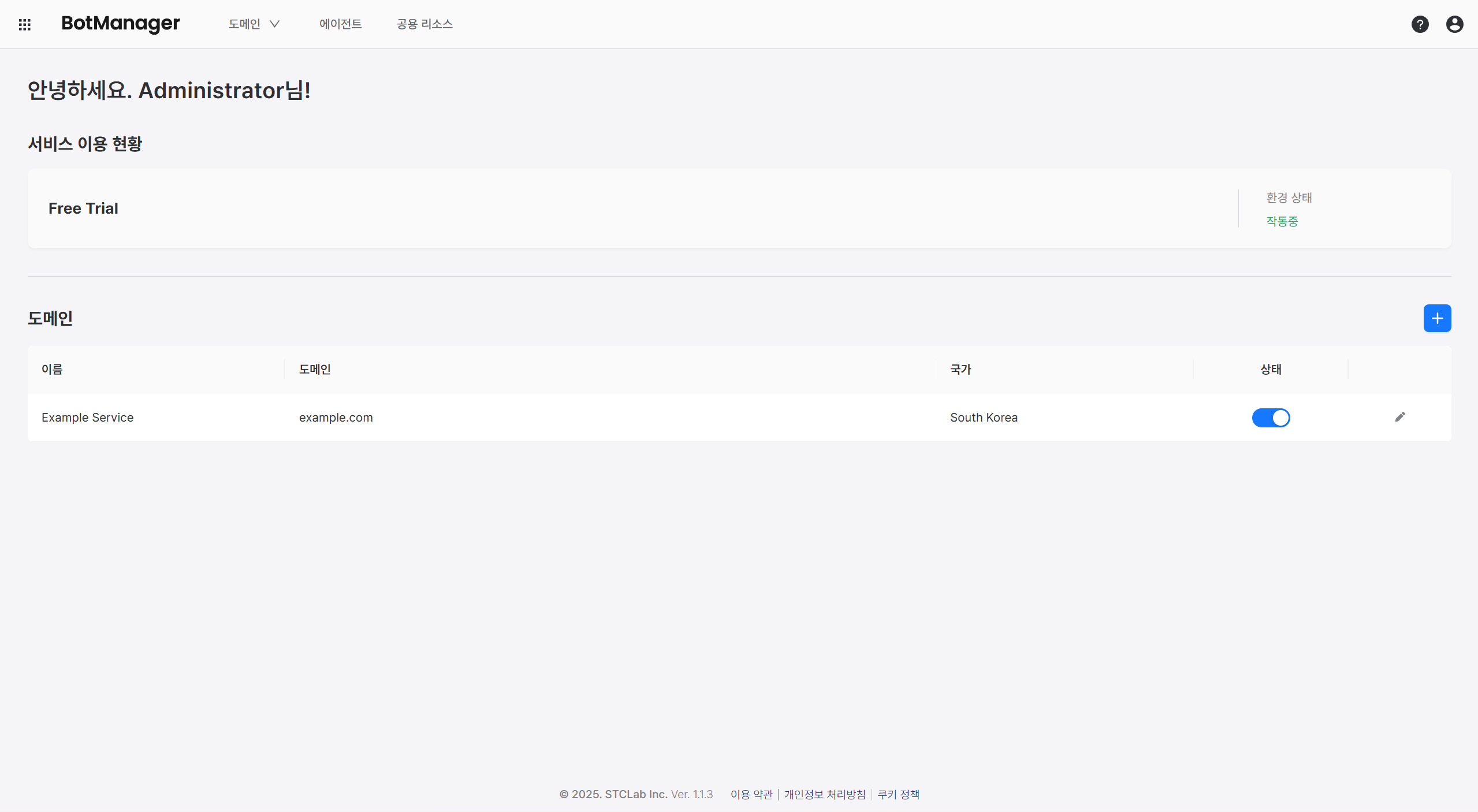
Domain Navigation
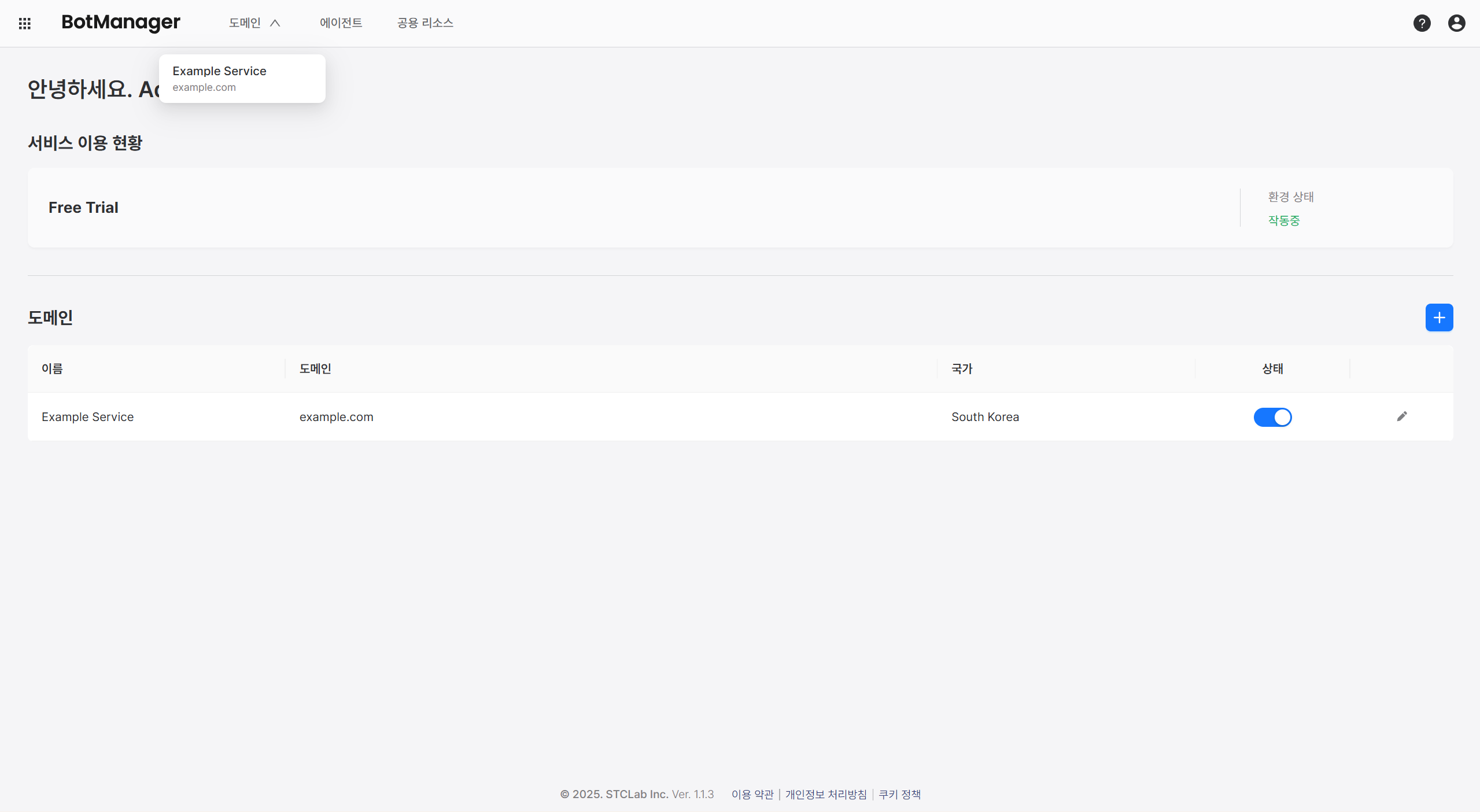
You can navigate to a domain's main page by clicking the desired domain from the domain list or dropdown menu in the console home.
Add Domain
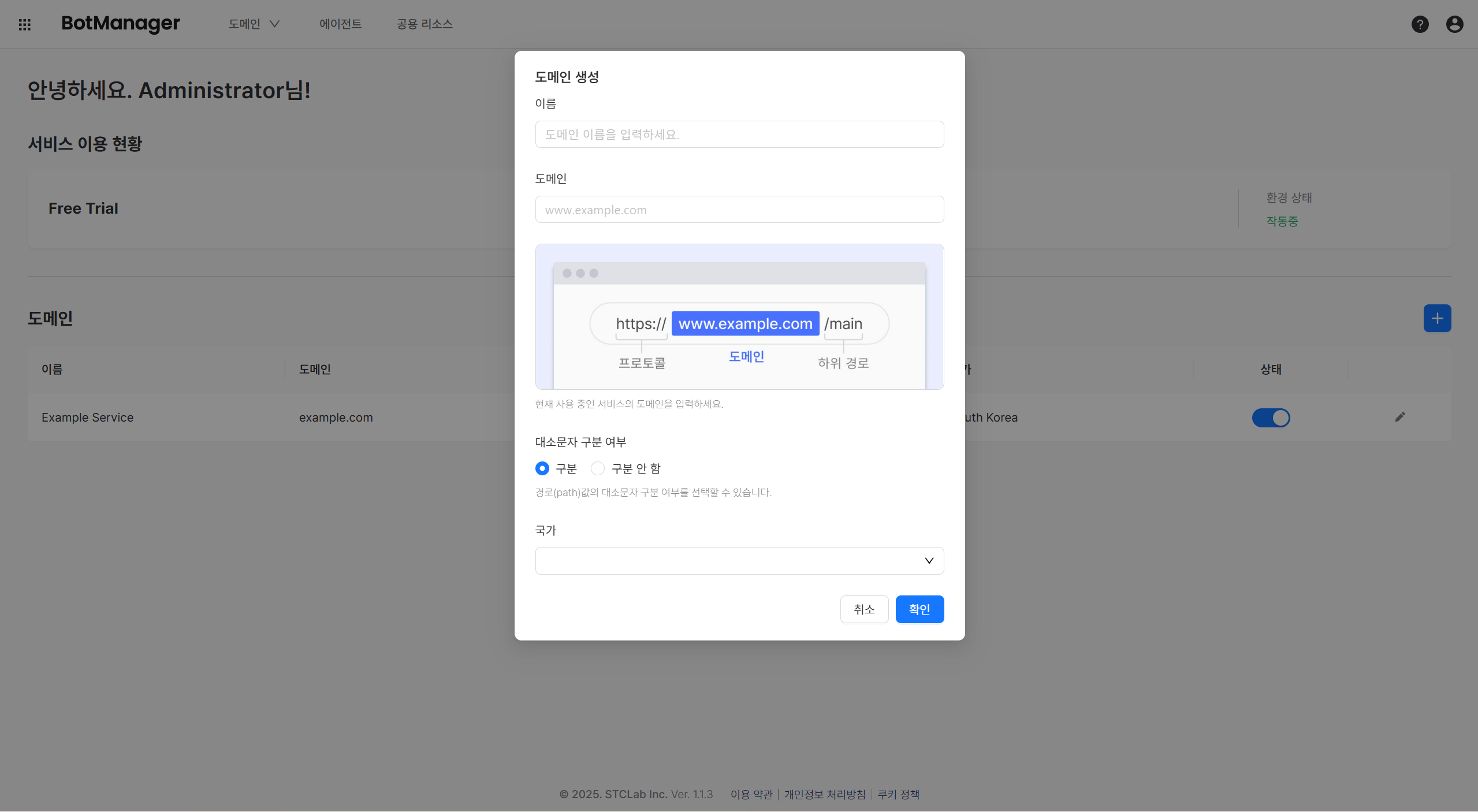
Click the plus button to add a new domain.
Once created, a domain cannot be deleted. If a domain is no longer needed, modify its information or deactivate it.
When adding a domain, users must configure the following items:
- Domain name: Name for identification
- Domain address: Address (URL) where the service will be applied
- Case sensitivity: Whether to distinguish between uppercase and lowercase in subpaths
- Example: If you want to manage the
https://www.example.com/eventpage, which is a subpath ofhttps://www.example.com(domain address), the case sensitivity setting determines whetherhttps://www.example.com/EVENTis also recognized as a management target. - It is recommended to follow the case sensitivity settings of the service domain currently in use.
- Example: If the domain subpaths
/eventand/EVENTare recognized as the same page, set case insensitive.
- Example: If the domain subpaths
- Example: If you want to manage the
- Server Side Agent usage: Determines whether to enable the server agent on the BotManager side. If disabled, main functions such as bot behavior/pattern analysis, detection, and blocking cannot be performed.
- Country: Country that serves as the basis for service usage
- If you want to block foreign IPs, foreign IPs are defined based on that country.
Once you have completed domain creation, get started quickly in the Domain documentation!