Response View
Overview
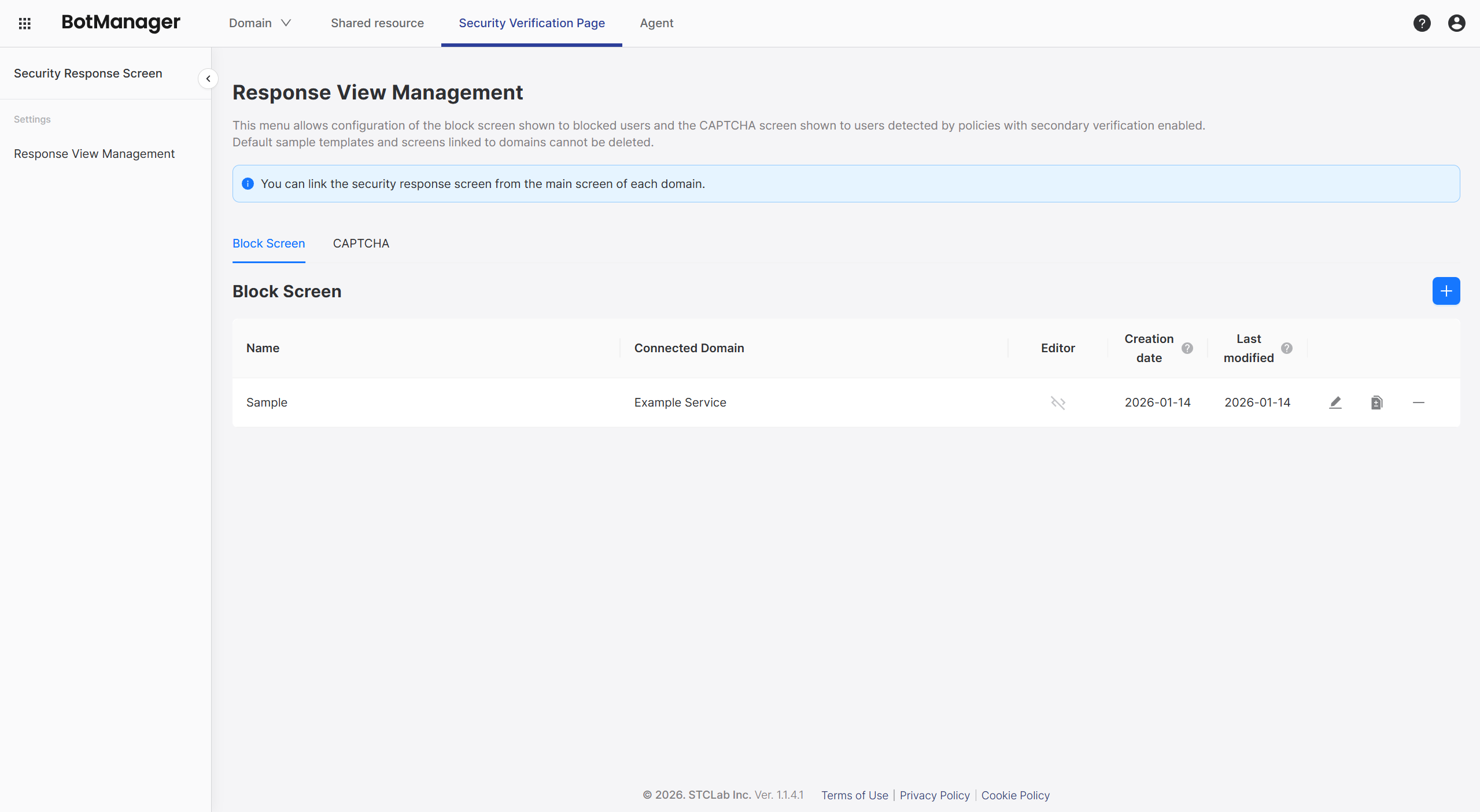
BotManager displays security response screens to users who are detected or blocked during the verification process.
Response screens are categorized into two types based on their purpose:
- Block Screen: Displayed to blocked users
- CAPTCHA Screen: Displayed to users detected by policies who need to perform secondary verification
Template Change
BotManager provides a default template called Sample for all response screens.
All domains created by users are connected to the Sample template by default.
You can change the template applied to a domain from the domain main page.
Template Management
List
Select [Block Screen] or [CAPTCHA] to navigate to the template list for that type.
The list consists of the following items:
- Template name
- Connected Domain: Domains owned by the user where this template is applied.
- A template can have no connected domains or be connected to multiple domains. However, a domain always uses only one template.
- Editor: You can check how the template was customized.
- Green indicates that code editing is being used for the template.
- Creation date
- Last modified: The date the template was last modified.
On the right side of the list, you can modify, duplicate, or delete templates. Templates that are already connected to a specific domain cannot be deleted.
If you need to delete a template, first change the template used by that domain, then try again. See Template Change for details.
The default Sample template cannot be deleted even if it has no connected domains.
Creation
Verify that the current list type matches the template type you want to create.
Select the [plus (+) button] in the top right to navigate to the template creation screen.
For template customization, see Block Screen Settings or CAPTCHA Screen Settings.
You can create up to 3 templates including the Sample template.