Console Home
The NetFUNNEL console home screen is your central dashboard for managing projects, monitoring service status, and viewing license information. This guide explains each section of the home interface and how to use it effectively.
Logging In
To access the NetFUNNEL console, log in with your credentials.
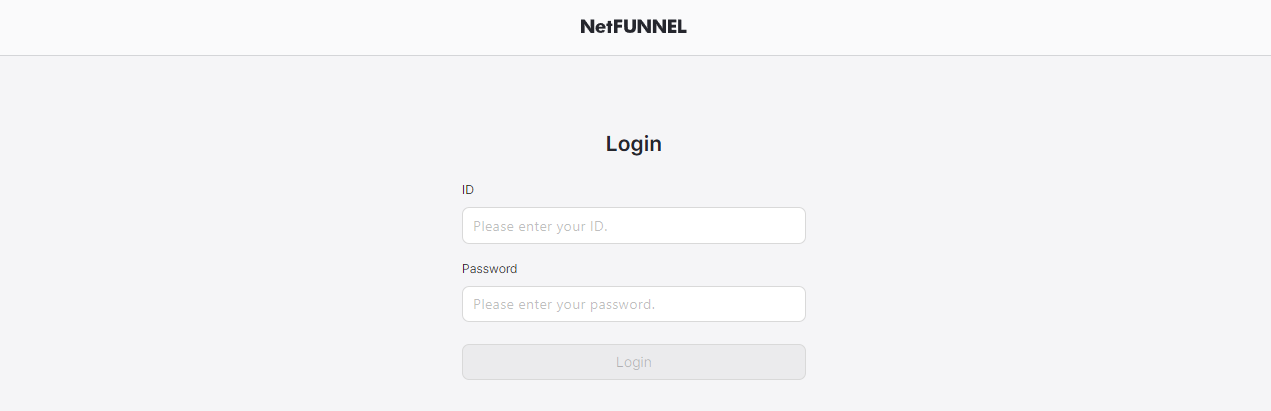
After logging in, you'll see the console home screen.
Overview
The console home screen provides a comprehensive overview of your NetFUNNEL environment at a glance. It displays key information about your projects, service status, and system health.
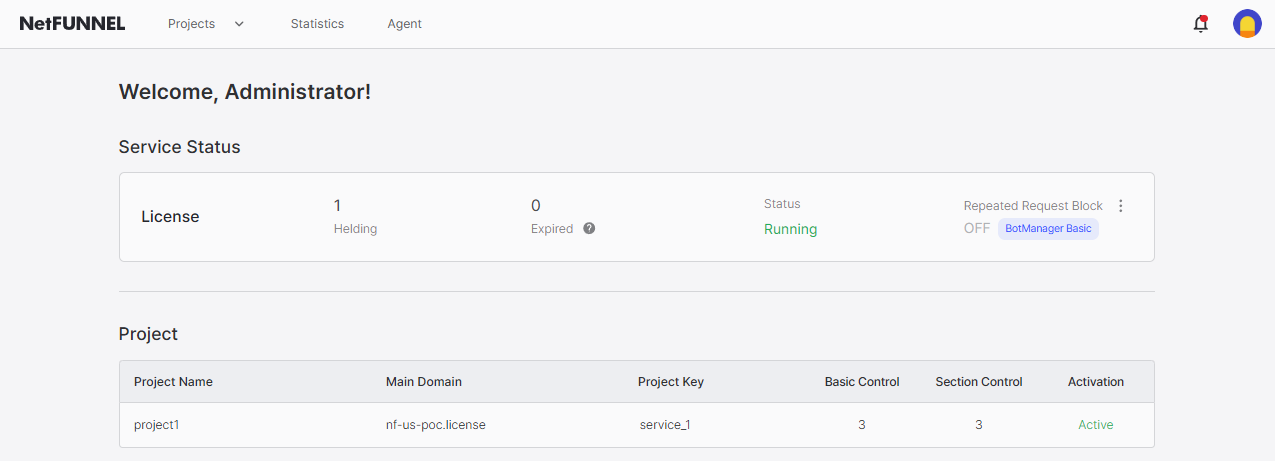
The home screen layout consists of two main sections arranged vertically:
- Service Status Section: Displays license status and repeated request block settings
- Project Section: Displays a table or list view of all your projects with key information
The interface uses a clean design where each status component is displayed in its own section with clear labels and values. Navigation elements are accessible from the top menu bar, and the main content area focuses on providing at-a-glance status information.
Service Status Section
The service status section displays license status and repeated request block settings.
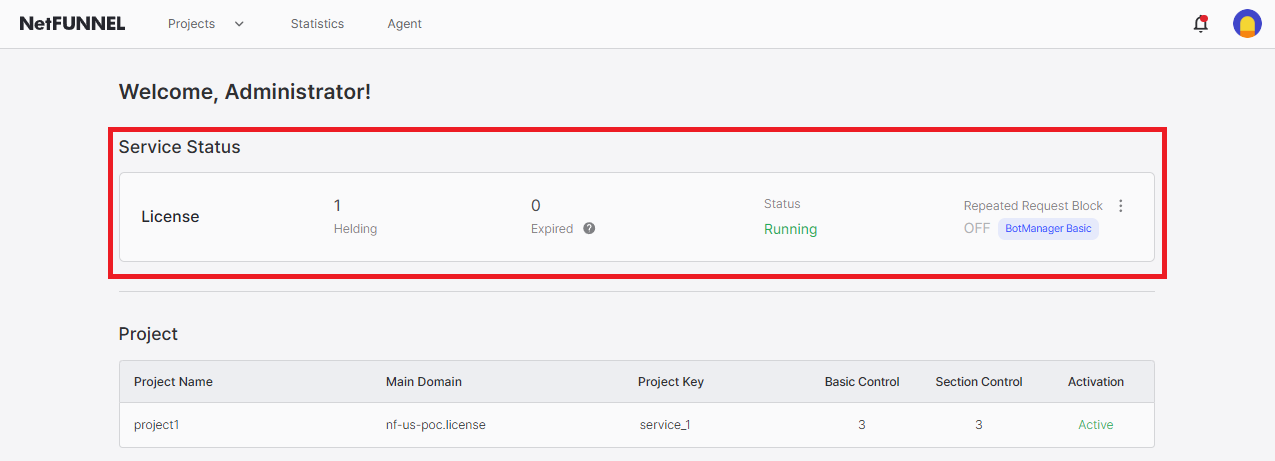
The service status section contains three main sections:
- License Status: Shows license information
- License Application Status: Displays license status
- Repeated Request Block: Shows the current state of the repeated request blocking feature
License Status
The license status section displays license information.
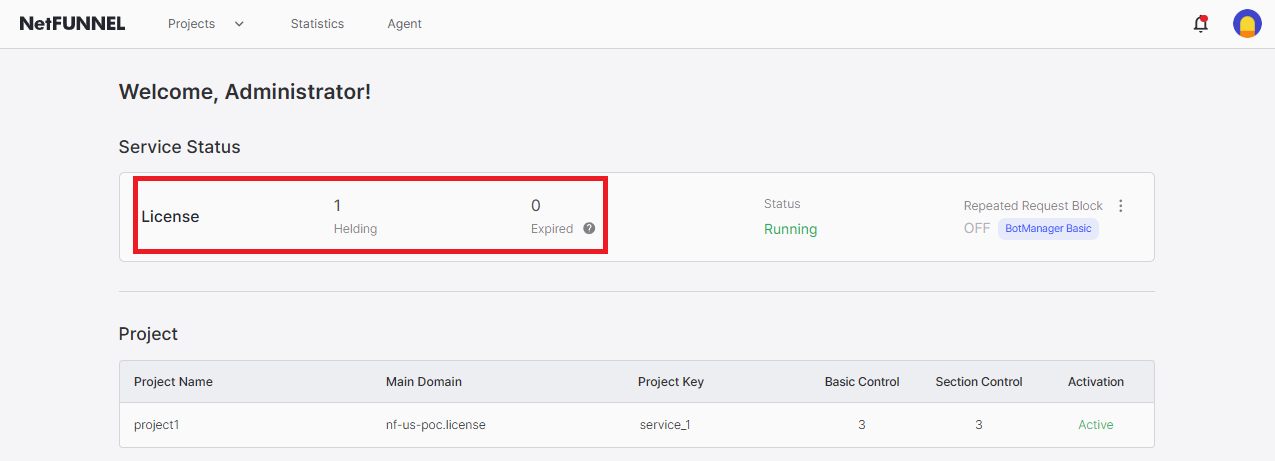
- Holding: Shows the count of currently active licenses
- Expired: Shows the count of expired licenses
License Application Status
This section displays the license status.
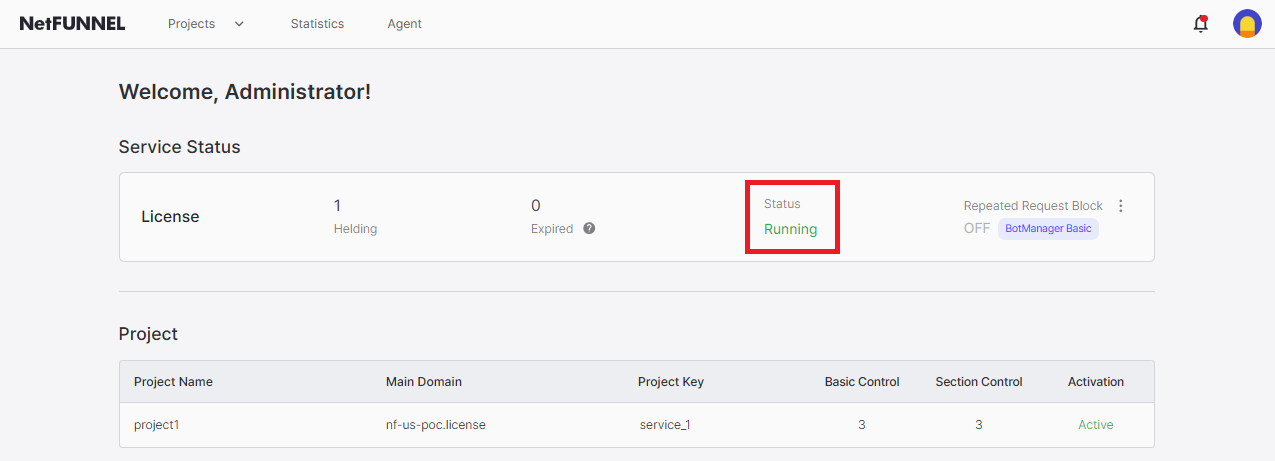
- Running: Indicates that the license is not expired and is properly applied without any issues
If a different status value is displayed, contact STCLab technical support at support@stclab.com
Repeated Request Block Status
The repeated request block section displays whether the repeated request blocking feature is enabled or disabled.
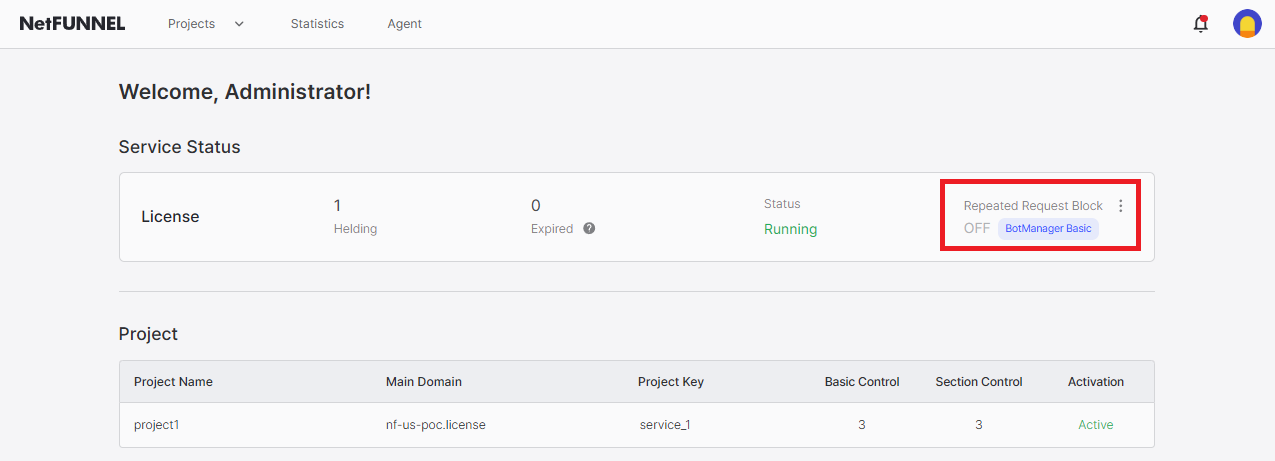
- OFF: The feature is disabled
- ON: The feature is enabled
Accessing Repeated Request Block Configuration
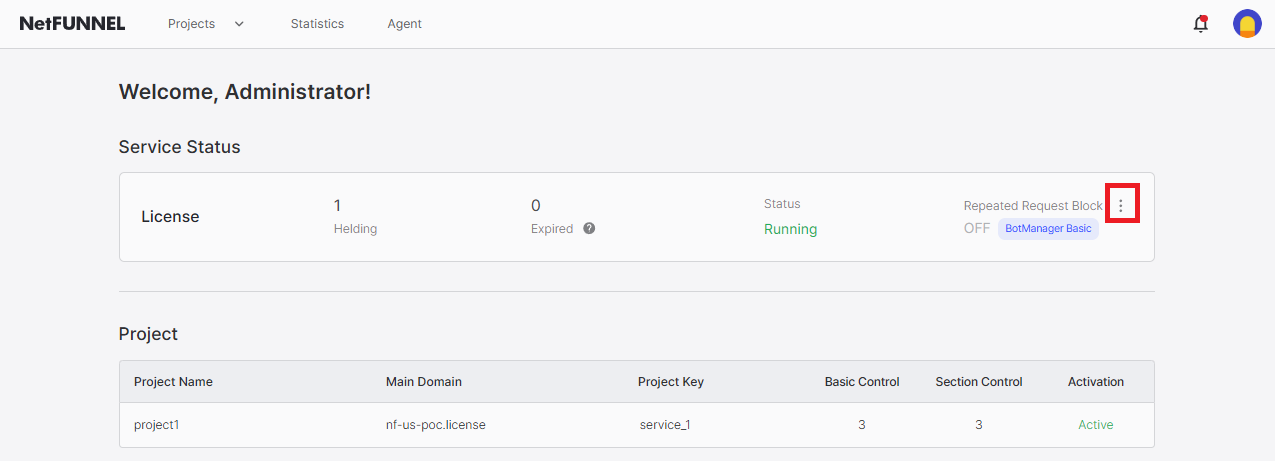
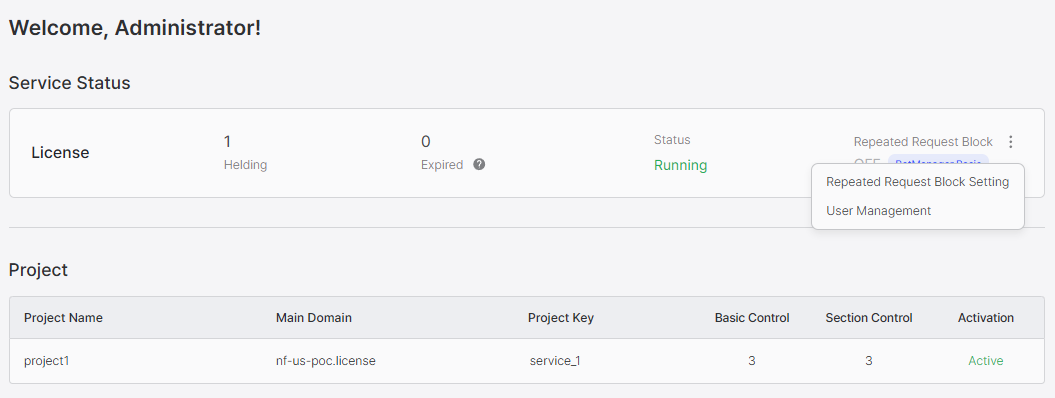
Click the button to access the repeated request block configuration menu. Clicking the button opens a dropdown menu that provides access to the repeated request block configuration page where you can toggle the feature on or off.
Project Section
The project section displays a list of all projects in your NetFUNNEL environment.
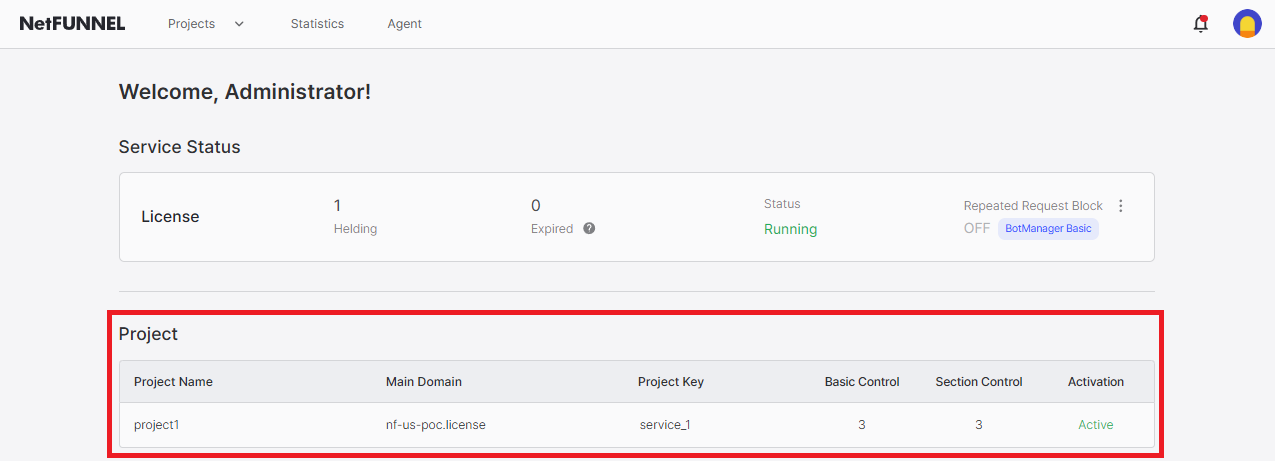
For detailed information about projects, project management, and how to use the project console, see the Projects guide and Interface Guide guide.