Domain
A Domain refers to a website or service that BotManager protects. This document explains the features and key points of the domain page.
You can manage active domains and view key information at a glance.
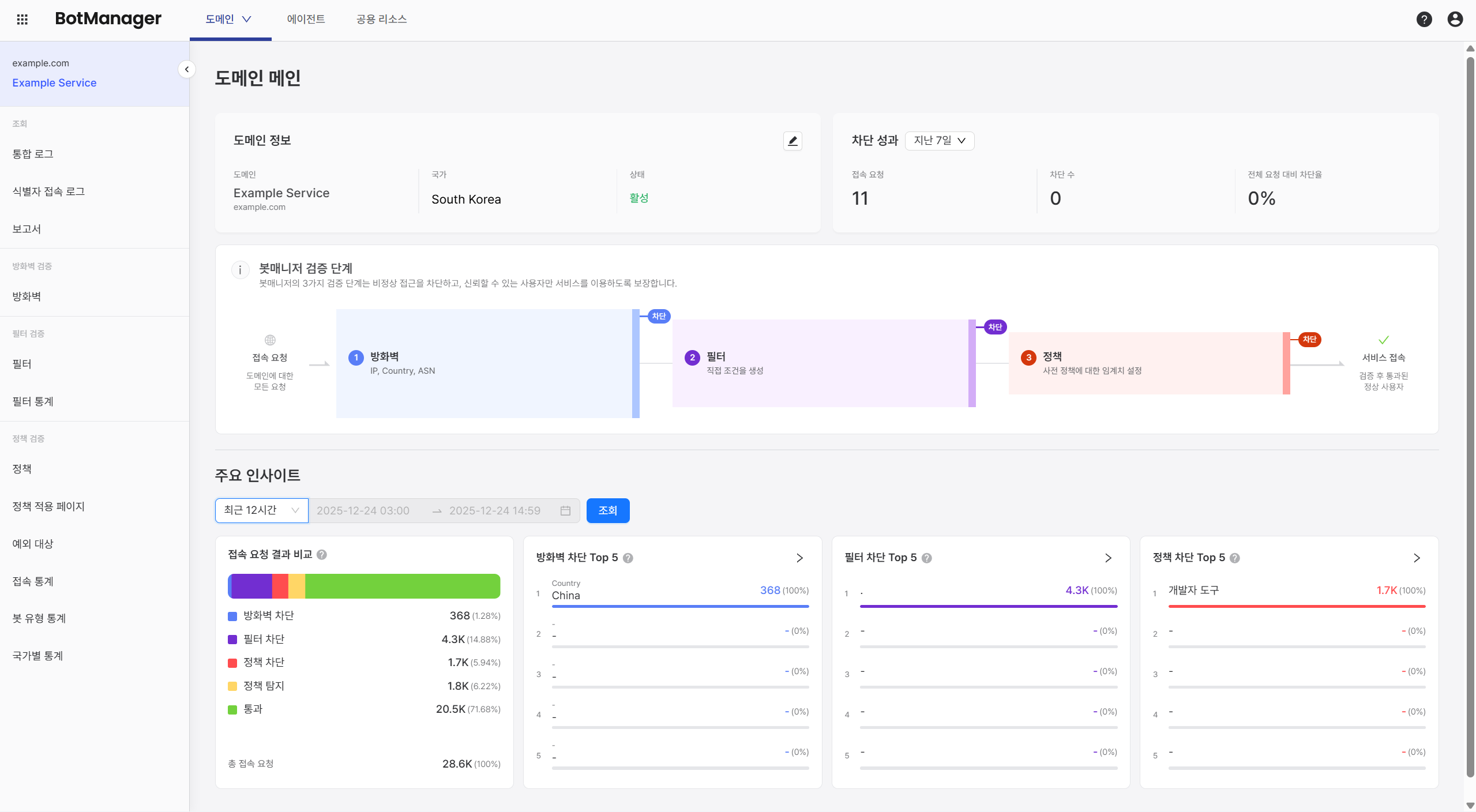
Domain Information
Displays the domain's address, base country, and BotManager activation status.
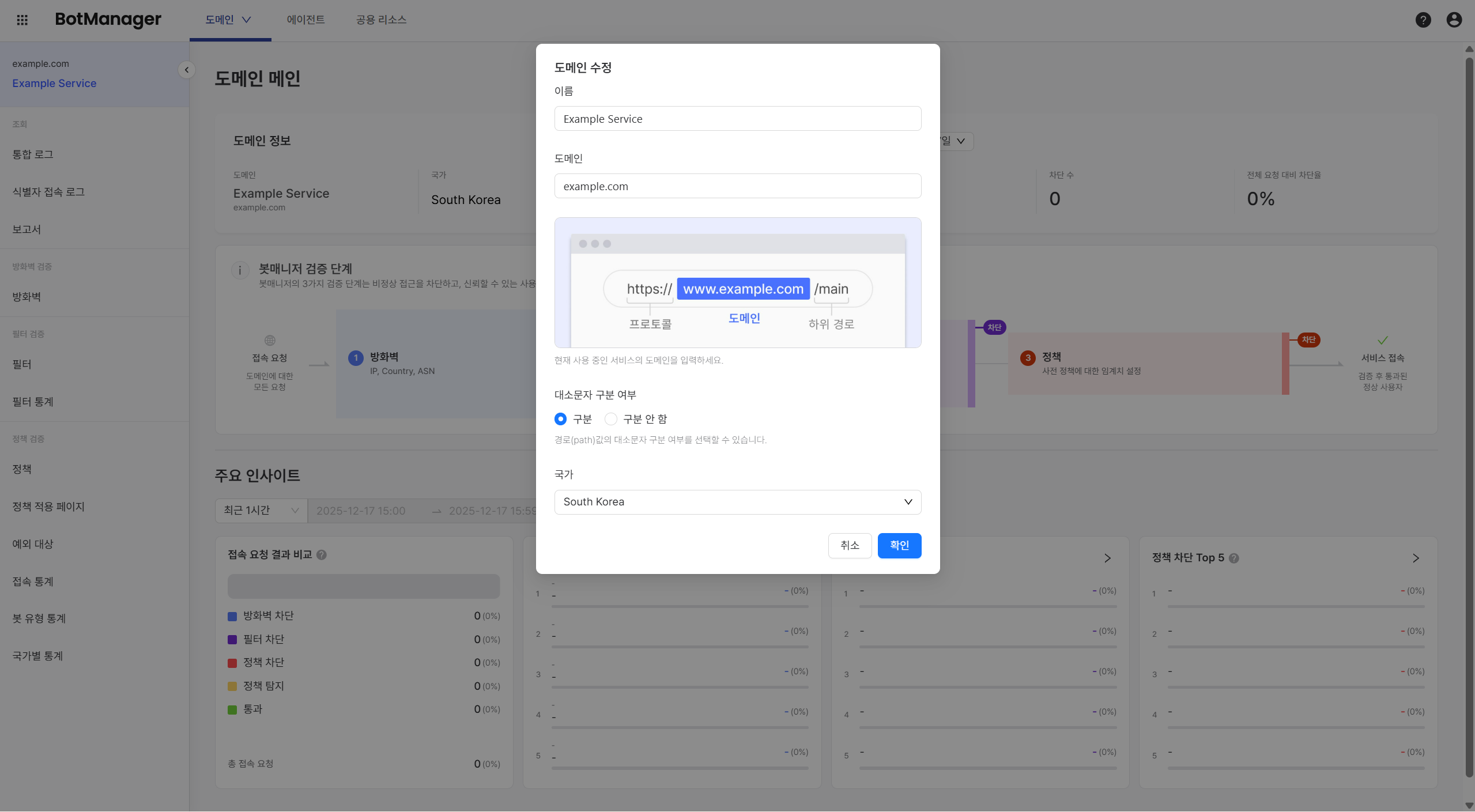
Click the pen button to modify domain information.
Blocking Performance
Displays the number of access requests that BotManager has blocked over the past 7, 14, or 30 days, and shows the blocked count as a percentage of total access requests.
(Blocked count / Total requests) * 100
By comparing this blocking rate with existing targets or expected values, you can verify whether BotManager is working as intended.
BotManager Verification Stages
BotManager supports a three-stage verification system consisting of Firewall → Filter → Policy to distinguish between normal users and bots:
When you hover over each area of the dashboard, a shortcut button for that verification stage appears.
Stage 1: Firewall Verification
- Blocks/allows access requests based on IP specified by the user. For more details, see the Firewall guide.
Stage 2: Filter Verification
- Blocks/detects/allows access requests based on attributes specified by the user. For more details, see the Filter guide.
Stage 3: Policy Verification
- Blocks/detects/allows access requests based on behaviors specified by the user. For more details, see the Policy guide.
The deeper the stage, the more sophisticated verification and broader functionality it supports. Only users who pass all three verification stages can access.
Key Insights
Displays BotManager blocking status during the query period specified by the user in visual format.
- Access Request Result Comparison: Shows the number blocked at each verification stage and the number that ultimately passed out of total access requests.
- Firewall Blocking: Shows the top 5 firewall items with the highest blocking rate at the firewall stage out of all traffic.
- For example, if the firewall blocks multiple IPs, the five IPs with the most access attempts (= blocking count) are displayed.
- Filter Blocking: Shows the top 5 filter items with the highest blocking rate among traffic that passed through the firewall.
- Since only the filter name is displayed without additional reference, set an intuitive name when adding filters.
- Filter1, Filter2, Filter3 (❌) VPN Blocking Filter, Header Blocking Filter, Protocol Blocking Filter (⭕)
- Policy Blocking: Shows the top 5 policy items with the highest blocking rate among traffic that passed through the firewall and filter.