How to Understand the List
The waiting room list displays common status information for all waiting room types.
Common Status Information
Each item in the waiting room list displays the following common status information:
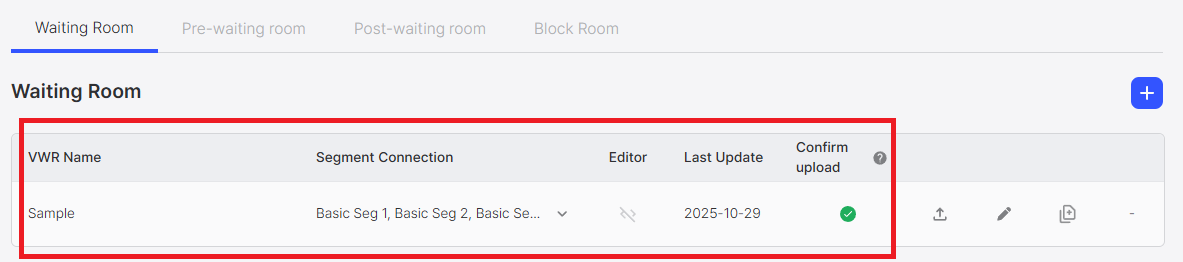
Displayed Information
- VWR Name: The name of the waiting room (maximum 50 characters)
- Segment Connection: List of segments connected to the waiting room
- Up to 35 characters are displayed, and if exceeded, it can be expanded or collapsed in accordion format
- Editor: Whether the waiting room is using code editor mode
- Last Update: The date when the waiting room was last updated
- Confirm upload: Confirmation status for uploaded waiting room files (NetFUNNEL On-Premise only)
- This column is related to the upload functionality used when serving waiting room files from other web servers
- The NetFUNNEL server verifies access to uploaded files through API calls
- ✓ (checkmark icon): Displayed when the API call successfully confirms the uploaded file endpoint
- ✗ (X icon): Displayed when the API call fails to confirm the uploaded file endpoint
List Action Buttons
Each waiting room item displays buttons to perform the following actions:
Edit Button
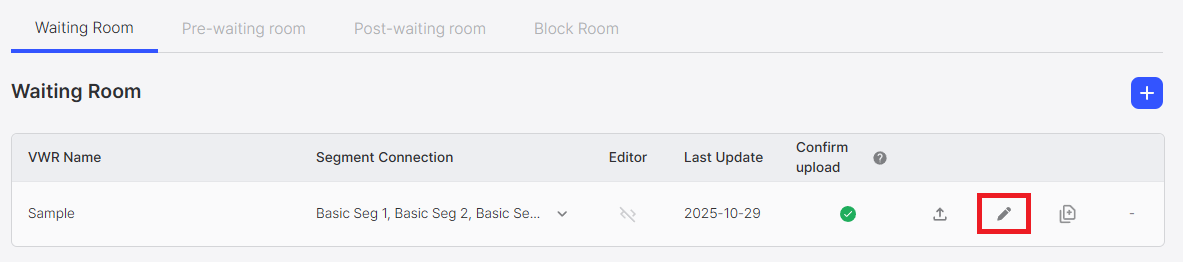
Clicking the edit button (pen icon) navigates to the editing page for that waiting room.
For more details, refer to the How to Edit document.
Duplicate Button
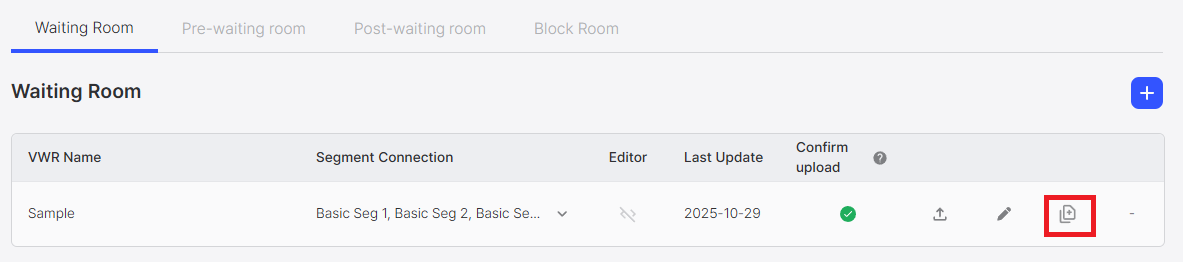
Clicking the duplicate button (document icon) allows you to duplicate the waiting room. This feature enables you to quickly create a new waiting room design object by copying an existing waiting room design as-is.
For more details, refer to the How to Duplicate document.
Delete Button
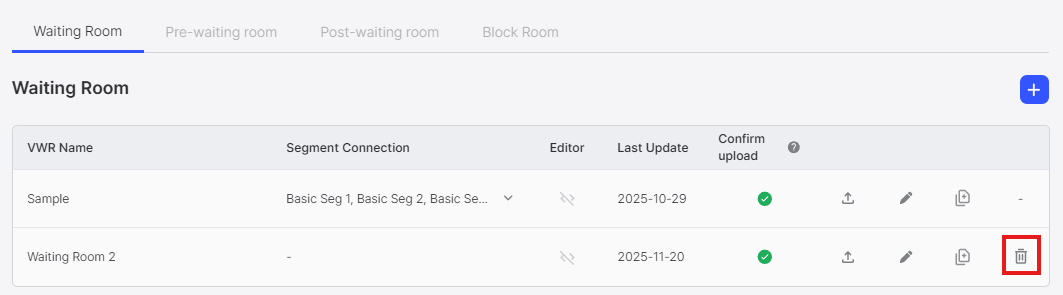
Clicking the delete button (trash icon) allows you to delete the waiting room. However, Sample waiting rooms (default system waiting rooms, one for each of the 4 types) do not support the deletion feature. The delete button is not displayed for these waiting rooms.
For more details, refer to the How to Delete document.
NetFUNNEL On-Premise Only Features
NetFUNNEL On-Premise version provides the following additional features:
Upload Button
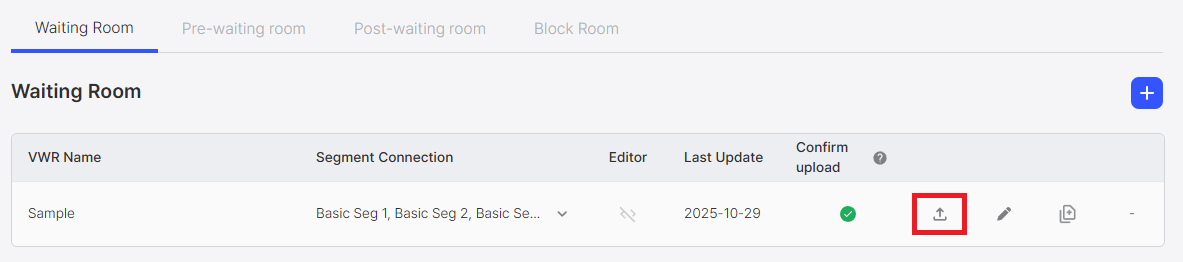
You can download waiting room files and upload them to specific servers using the upload button.
For more details, refer to the How to Upload Files document.