Shared Resources
What are Shared Resources?
A feature to register and manage groups for blocking or allowing across multiple domains. Groups registered in Shared Resources can be referenced in the Firewall or Filter stages of all domains managed by the user.
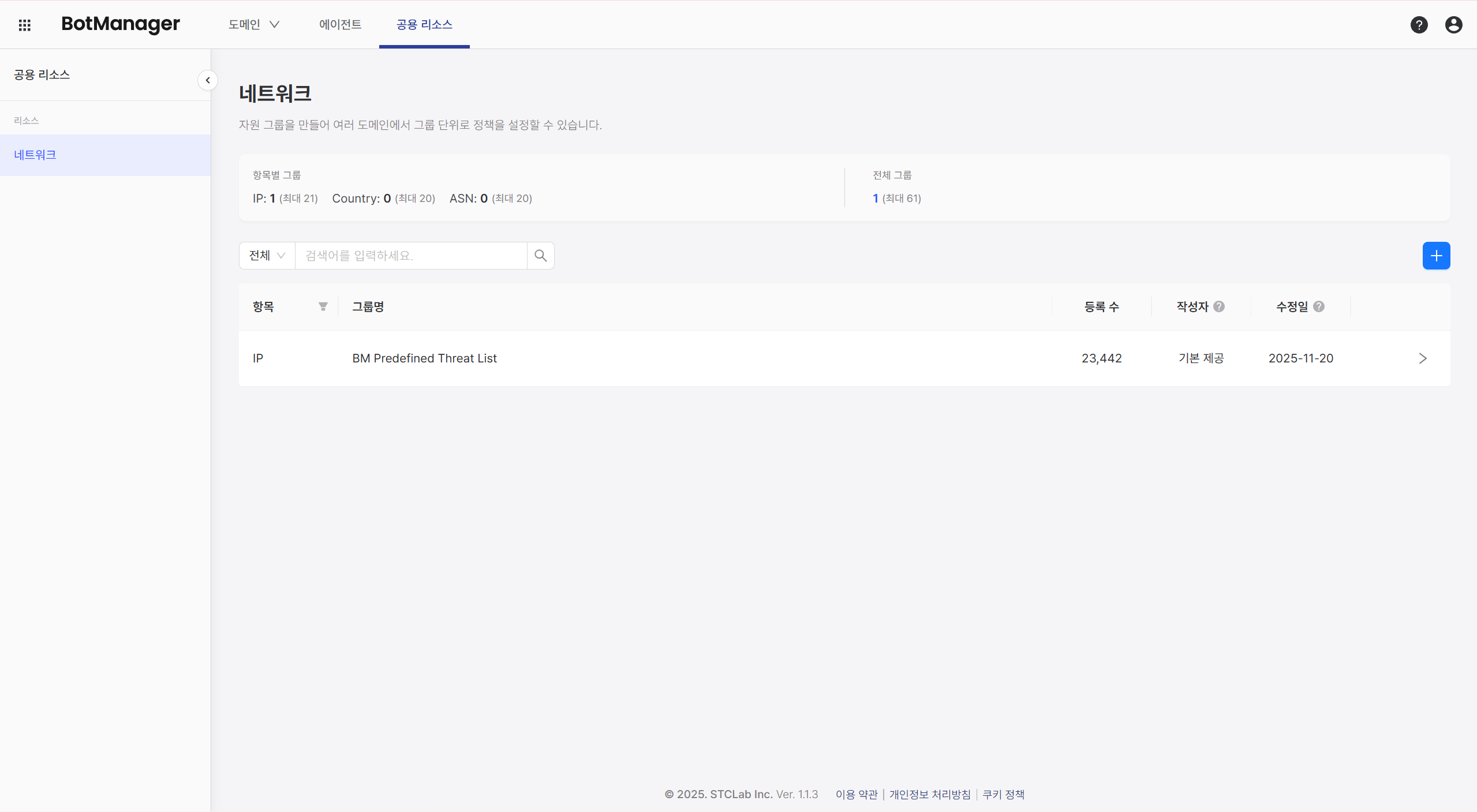
Group Creation
You can create groups by IP/Country/ASN attributes to easily specify blocking/allowing targets.
BotManager provides a predefined list of approximately 23,000 threat IP list items.
This list cannot be deleted. If you don't want to use it, deselect it in the Firewall or Filter stage.
Press the plus button to create a new group. You can create up to 20 groups per IP/Country/ASN attribute.
For IP item groups, the non-deletable predefined list is included, showing a maximum of 21 groups.
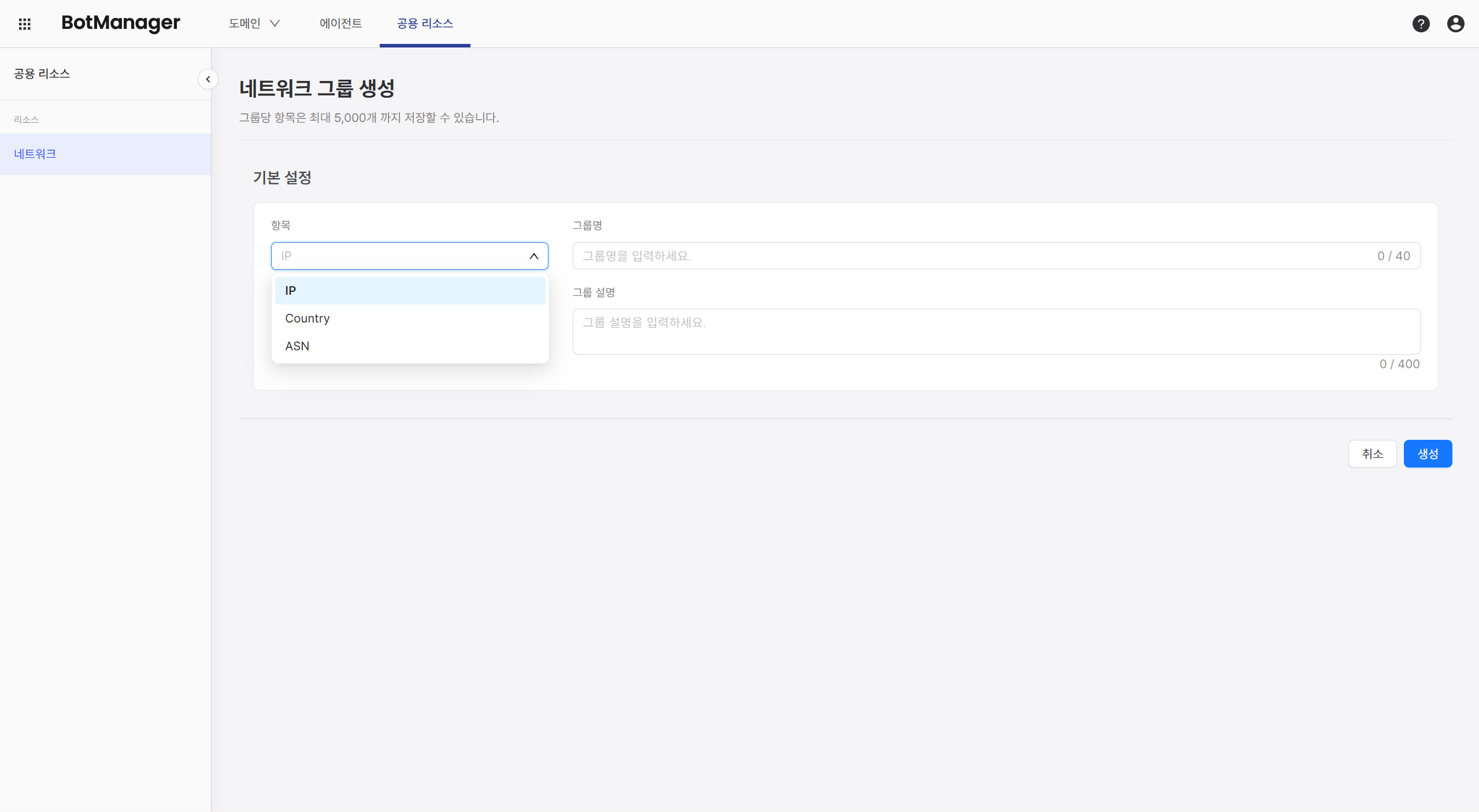
Basic Settings
Enter information that will be displayed first in the group list.
- Item: Select from IP/Country/ASN attributes
- Group Name
- Use a clear group name that clearly indicates intent and content so it can be specified in block/allow lists.
- IP List, Group 1, Group 2 (❌) VPN Block List, Malicious IP Group, Service Unavailable Countries (⭕)
- Group Description
- Write the creation purpose and details.
Press the Create button at the bottom right to create the group and specify items.
Item List
You can add up to 5,000 items. Add them by importing a file or entering directly.
Import File
You can use file upload when the group you want to add is large or you have existing data.
BotManager requires a file written in the template format to recognize group items.
Press the Download Template button on the right side of the item list to download a CSV (.csv) or Excel (.xlsx) file.
After adding items according to the template, return to BotManager and press the Import File button on the right, then select the appropriate file type.
If you need help, contact STCLab Technical Support Team. (support@stclab.com)
Direct Entry
Press the Plus button on the right to display the item entry form and enter details.
- Item Value: Value to specify in the group according to the selected item (IP/Country/ASN)
- Example: (IP)
1.1.1.1
- Example: (IP)
- (Optional) Description: Reason why this item is included in the group
- Example:
YYYY-MM-DD IP that attempted malicious attack
- Example:
When entering directly, you cannot add multiple items at once, so be sure to enter and save individually.
Even if you enter multiple items at once, you can only press the save button once.
Delete
To delete an already registered item, press the Delete button on the right or select multiple items with the checkbox on the left and delete them simultaneously.
Group Management
Search
You can search by selecting one of All/IP/Country/ASN from the dropdown menu.
To search for one or more attributes, press the Filter icon next to the item at the bottom and select the desired attributes.
Group Attributes
- Author: Name of the user who most recently modified appears.
- Modified Date: Date of most recent modification is displayed.
- Registered Count: Number of items included in that group.
You can modify or delete using the icon on the right.
BM Predefined Threat List is the threat IP list provided by BotManager by default.
The author name is displayed as Predefined, and it cannot be modified or deleted, so click the arrow button on the right to check detailed information.