Interface Guide
Load Tester (Lite) is a tool that simulates real traffic to test the performance and stability of waiting rooms. This guide explains the Load Tester interface and key configuration items.
Overview
Load Tester can be executed in two ways:
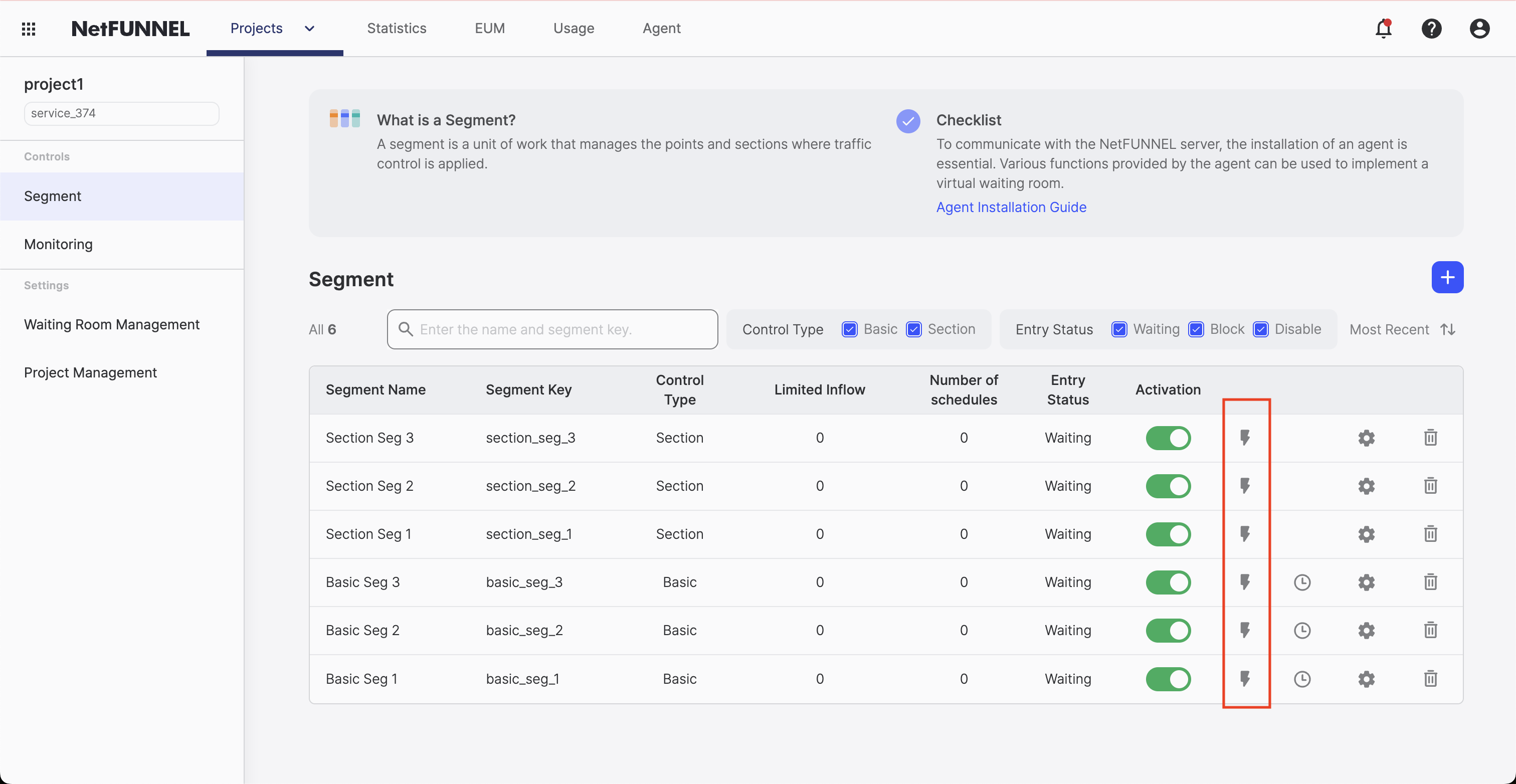
Run from Segment List
Click the lightning icon in the action column of each segment in the segment list to run Load Tester for that segment.
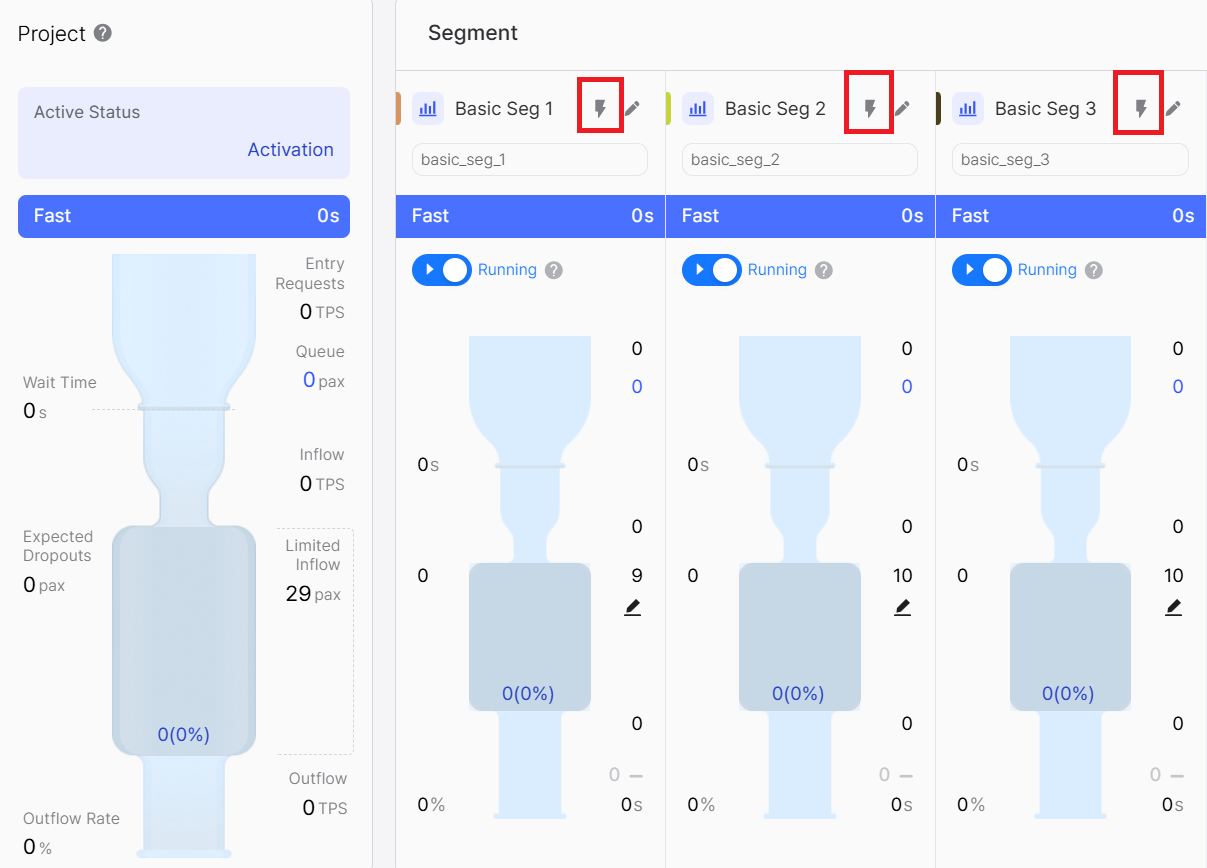
Run from Monitoring Page
Click the lightning icon on the monitoring page to run Load Tester.
Basic Settings
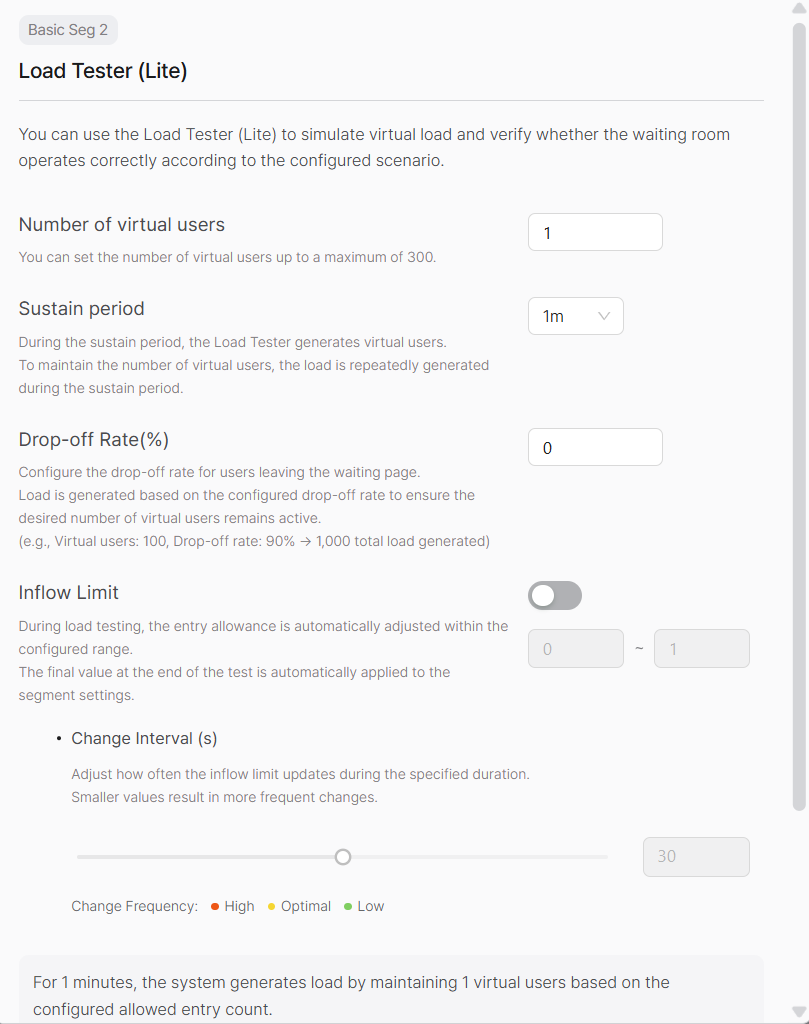
You can configure the details of the test scenario before running Load Tester.
If a segment is operating a pre-waiting room or post-waiting room, Load Tester is not applied until the pre-waiting room or post-waiting room ends.
Number of Virtual Users
The number of virtual users simulates the actual number of concurrent users, including waiting users and active users. You can set up to 300 users, and the specified number of virtual users will continuously attempt to access the waiting room.
For example, if 100 virtual users are set and 10 users complete their tasks, the tester immediately replenishes traffic for 10 users to maintain the active user count at 100.
Duration
Set the duration for which the test will be maintained. You can set a minimum of 1 minute and a maximum of 10 minutes.
Dropout Rate (%)
Set the percentage of users who leave the page while waiting. Dropouts include cases where users navigate to another page or abandon the connection.
The tester reflects this value to ensure the number of virtual users to be injected into traffic.
For example, if the concurrent virtual user count is set to 100 and the dropout rate is set to 90%, the tester generates a load equivalent to 1,000 users.
Actual Load = Concurrent Virtual User Count ÷ (1 - Dropout Rate)
Example: 100 users ÷ (1 - 0.9) = 1,000 users
Limited Inflow
When this feature is enabled, Load Tester automatically adjusts Limited Inflow during simulation. You can set the minimum and maximum adjustable values.
The tester's last changed value is ultimately saved to the segment. If you do not want segment settings to change, disable this setting.
Change Cycle: The cycle for adjusting Limited Inflow within the set duration, in seconds (s). The smaller the value, the more frequently Limited Inflow changes.
Simulation Examples
The following are practical examples of Load Tester usage. Note that Load Tester cannot be executed for segments that are operating pre-waiting rooms or post-waiting rooms.
When You Want to Fix Limited Inflow
Through Segment 2, we want to verify whether the current Limited Inflow setting of 10 users is appropriate for the event.
Disable Limited Inflow adjustment to generate traffic simulation while maintaining segment settings.
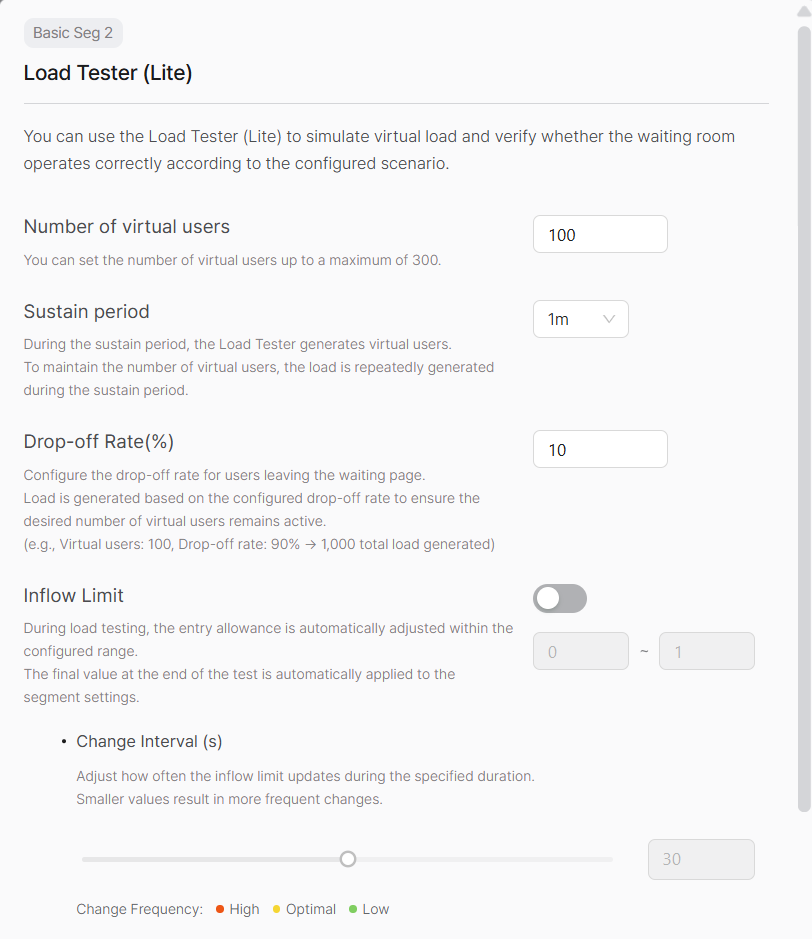
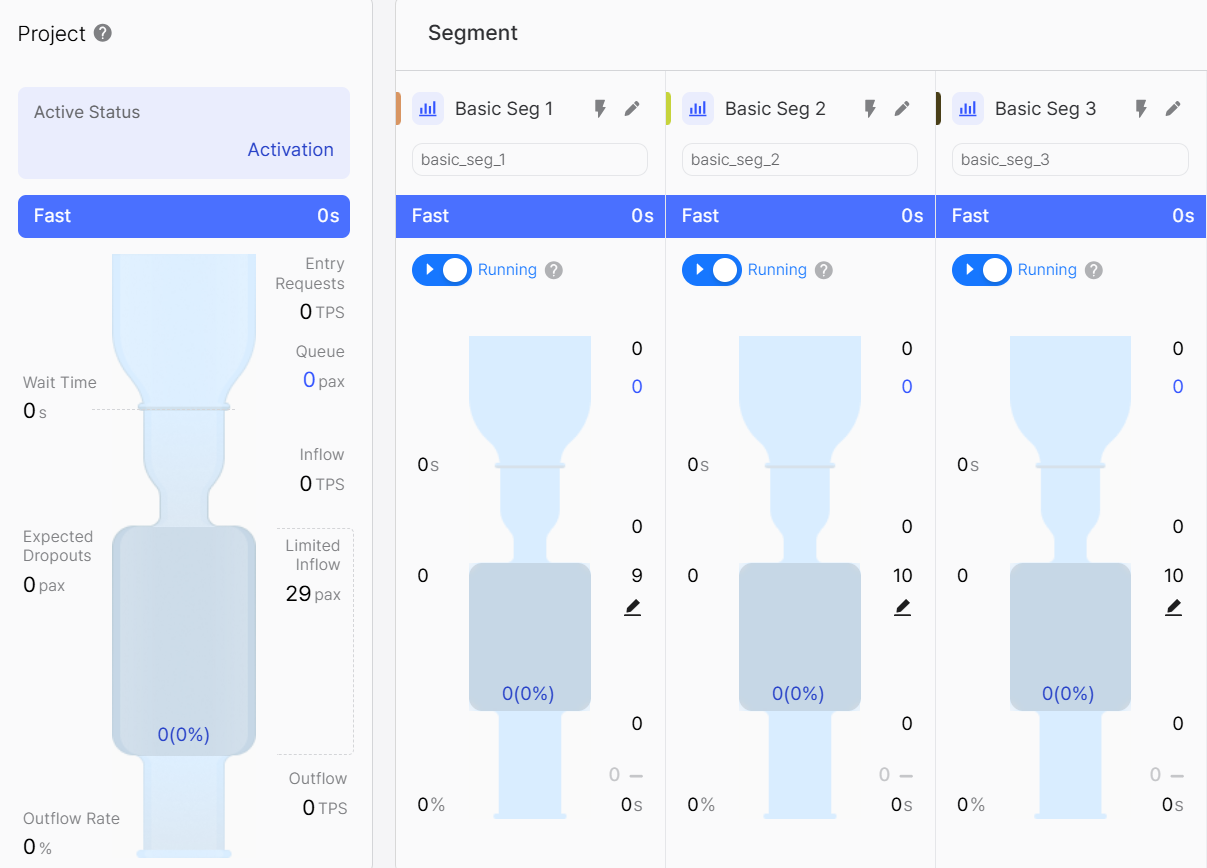
The simulation results are as follows:
You can see traffic being managed stably without exceeding the Limited Inflow of 10 users for concurrent entry. If abnormal symptoms such as excessively slow queue progress are observed, users should consider adjusting the settings.
Fixing Limited Inflow is useful when verifying whether the current setting is appropriate or testing system performance at a specific Limited Inflow.
When You Want to Adjust Limited Inflow
Segment 3 wants to find an appropriate Limited Inflow when the expected server traffic value is almost certain.
The default Limited Inflow before testing is 10 users.

After configuring the simulation, enable Limited Inflow adjustment. Limited Inflow is checked every 5 seconds.
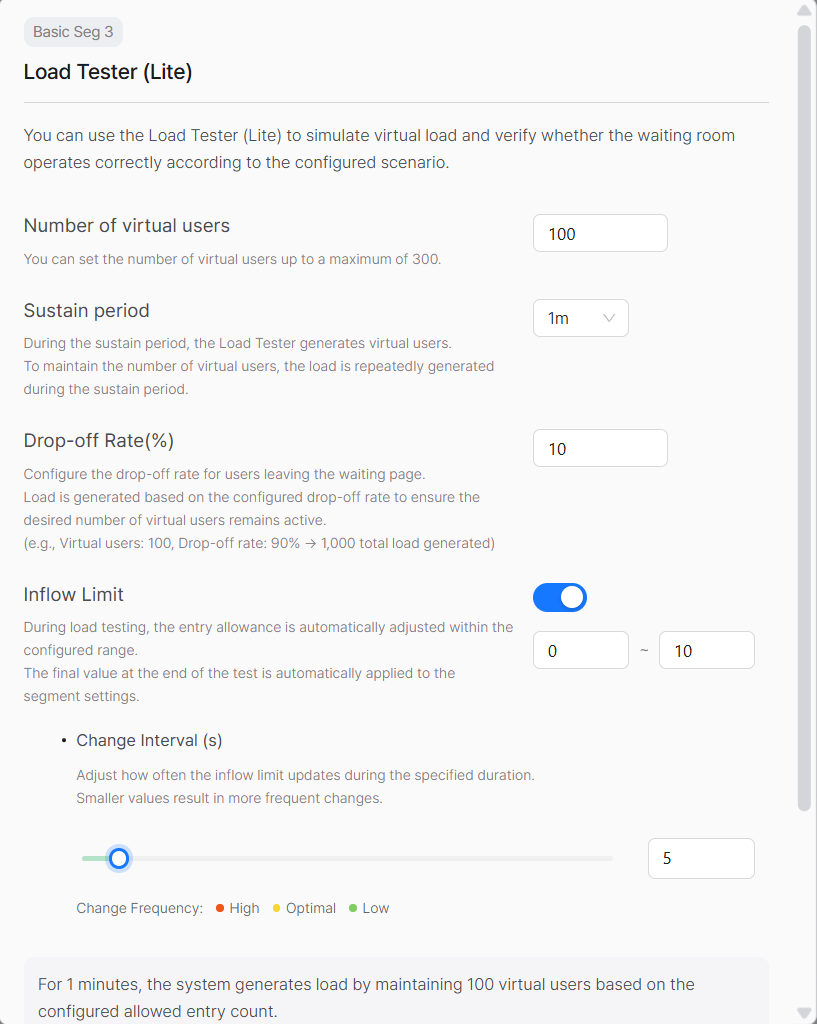
You can see Limited Inflow automatically changing during the test as follows:
After the test ends, when you check the segment settings, Limited Inflow has been changed to the last changed value.

When using the Limited Inflow auto-adjustment feature, segment settings are changed after the test ends. If you do not want this, disable the feature before testing or restore the segment settings to their original state after testing.
Contact STCLab Technical Support (support@stclab.com)