How to Edit
This section explains how to edit existing waiting rooms.
Step 1: Click Edit Button
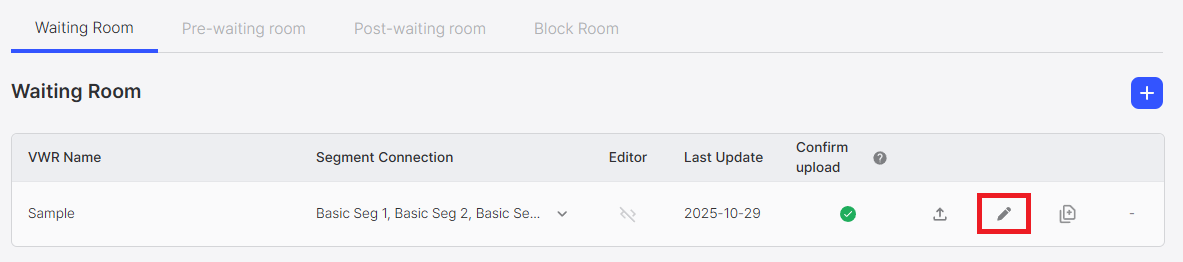
Click the Edit Button (pen icon) for the waiting room you want to edit in the waiting room list.
Step 2: Modify Waiting Room Settings
Clicking the edit button navigates to the editing screen for that waiting room design.
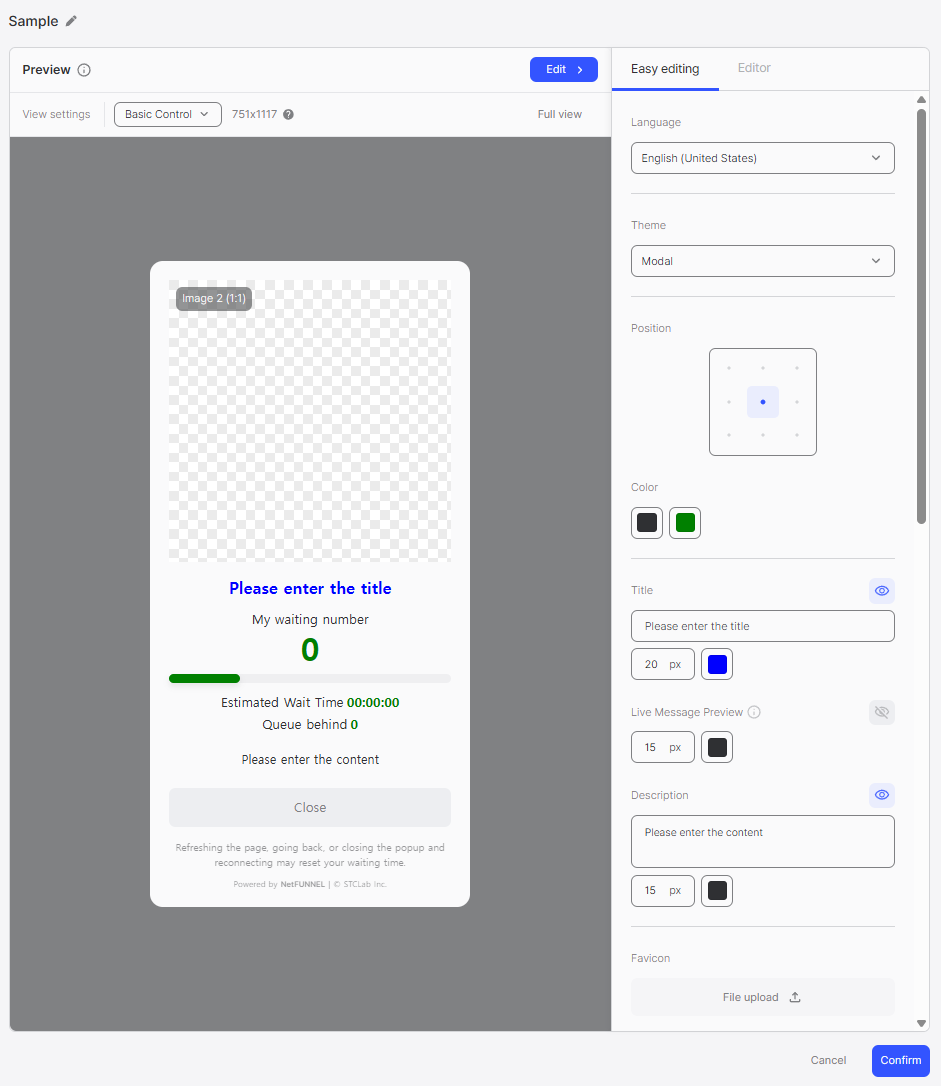
On the editing screen, you can perform the following actions:
- Modify Waiting Room Name: You can change the name of the waiting room
- Modify Design: You can customize the waiting room design
- Change Settings: You can change various settings of the waiting room
Step 3: Confirm Changes
Click the Confirm button to save the changes.
Editing Rules
Name Editing Rules
- Maximum Length: Up to 50 characters can be entered
- No Duplicates: Duplicate names cannot be used between waiting rooms
- No Blank: The name cannot be set to blank